> ## Documentation Index
> Fetch the complete documentation index at: https://docs.wokelo.ai/llms.txt
> Use this file to discover all available pages before exploring further.
# Getting started
## What is Wokelo MCP?
Wokelo MCP is a [Model Context Protocol](https://modelcontextprotocol.io) server that gives your AI assistant — Claude, ChatGPT, or any MCP-compatible client — direct access to Wokelo's dealmaking research stack. Once connected, you can run company enrichment, market maps, M\&A screening, news monitoring, and full research workflows in plain language, without leaving chat.
Under the hood, the server is backed by:
* A proprietary database of **100M+ entity-resolved companies**
* **30+ premium data sources** for financials, transactions, filings, reviews, news, and IP
* Domain-tuned LLMs and pre-built workflows that codify dealmaking methodology
* An **exhaustive transactions database** covering global fundraises and M\&A
> **Server URL:** `https://mcp.wokelo.ai/mcp` **Auth:** OAuth 2.0 **Supported clients:** Claude (Web, Desktop), ChatGPT (Business, Enterprise)
## Who should use this
| If you are… | What you'll do |
| :---------------------------------------- | :------------------------------------------------------------------------------------------------------------------------------------------------------ |
| **An analyst, banker, or PE/VC investor** | Ask your AI assistant for company briefings, deal comps, peer analyses, and bulk enrichment — get verified, source-cited answers in seconds to minutes. |
| **A research lead or knowledge manager** | Codify your firm's research methodology once and run it consistently across the team. |
| **A developer or IT admin** | Stand up the connector for your firm, configure tool permissions, and route Wokelo into agentic workflows. |
If you want use-case examples and sample queries before installing, see [MCP use cases](/mcp-use-cases).
***
## Prerequisites
Before you connect, make sure you have:
* A **Wokelo account** with MCP access enabled (contact your account manager if you're not sure)
* One of the supported AI clients:
* **Claude** — Web or Desktop, on any plan that supports custom connectors
* **ChatGPT** — Business (Team) or Enterprise plan; **only workspace admins** can add custom apps
* The Wokelo **Skill File** — [download here](https://wkemails.blob.core.windows.net/clients/%28%279a7adb3f-b1d2-4fe0-9062-3aea68bae540%27%2C%29/SKILL.md)
The skill file is the orchestration layer. It tells your AI assistant when to use Wokelo, which tools to chain for which questions, and how to format outputs. Without it, the connector still works — but the assistant won't reliably know to use Wokelo over web search, and you'll get shallower answers.
***
## Connect to Claude
### Claude Web
From any Claude conversation, open **Settings**.
Navigate to **Connectors → Add Connectors**.
* **Name:** `Wokelo`
* **Remote MCP server URL:** `https://mcp.wokelo.ai/mcp`
Click **Add**.
You'll be redirected to Wokelo to log in. Complete authentication, and the Wokelo connector will appear in your Claude connectors list.
### Claude Desktop
The flow is identical to Claude Web — open **Settings → Connectors → Add Connectors**, enter the same URL, and authenticate.
### Upload the Skill File in Claude
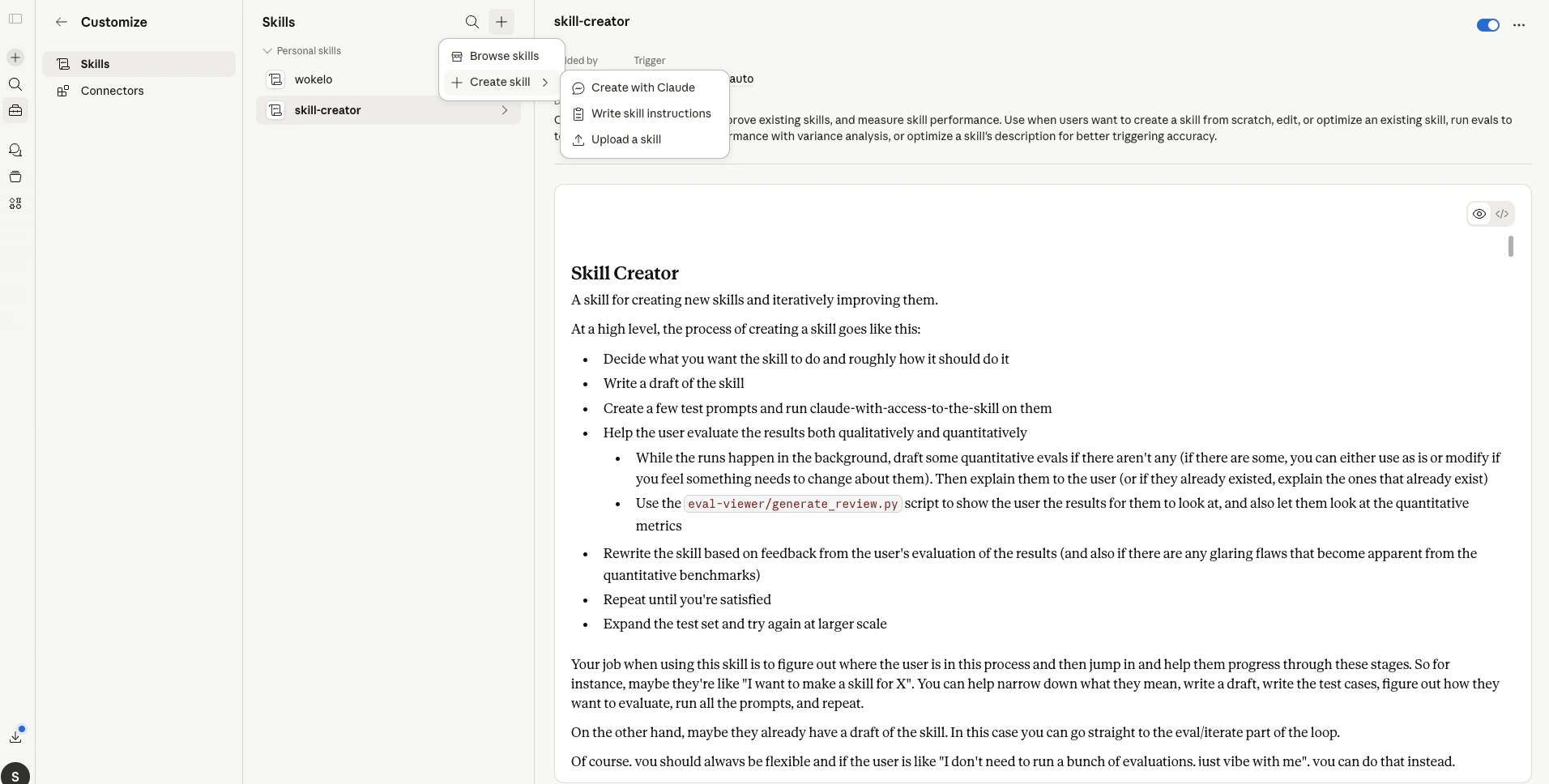
From Claude's left navigation panel, click **Customize**.
In the **Skills** section, click **+** and upload the [Wokelo Skill File](https://wkemails.blob.core.windows.net/clients/%28%279a7adb3f-b1d2-4fe0-9062-3aea68bae540%27%2C%29/SKILL.md).
 ***
## Connect to ChatGPT
ChatGPT custom apps are available on the **Business (Team)** and **Enterprise** plans only. **Workspace admins** are the only role that can register custom apps.
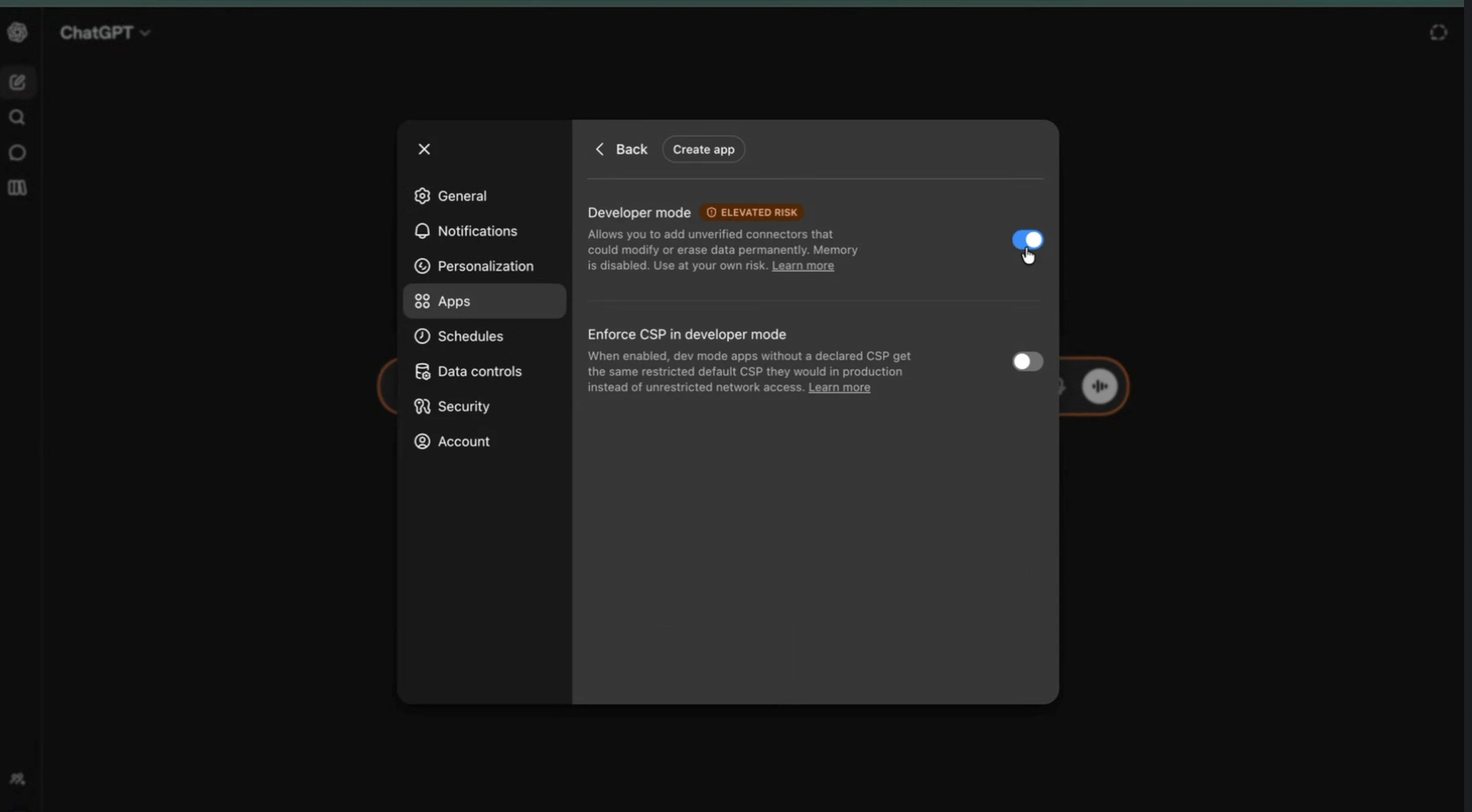
Go to **Settings → Apps → Advanced Settings** and enable **Developer Mode**.
***
## Connect to ChatGPT
ChatGPT custom apps are available on the **Business (Team)** and **Enterprise** plans only. **Workspace admins** are the only role that can register custom apps.
Go to **Settings → Apps → Advanced Settings** and enable **Developer Mode**.
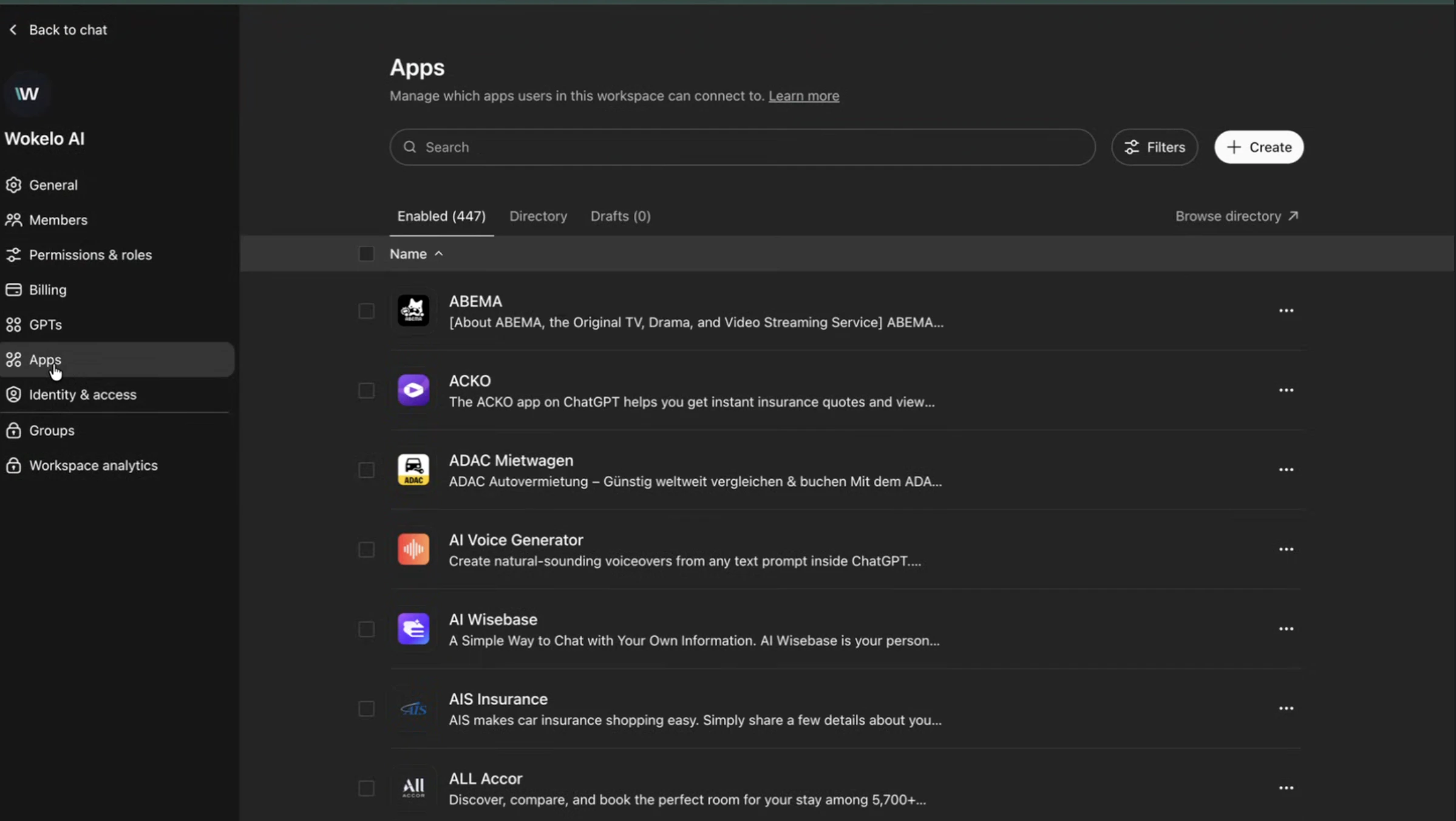
 From your workspace settings, go to **Apps** and click **Create**.
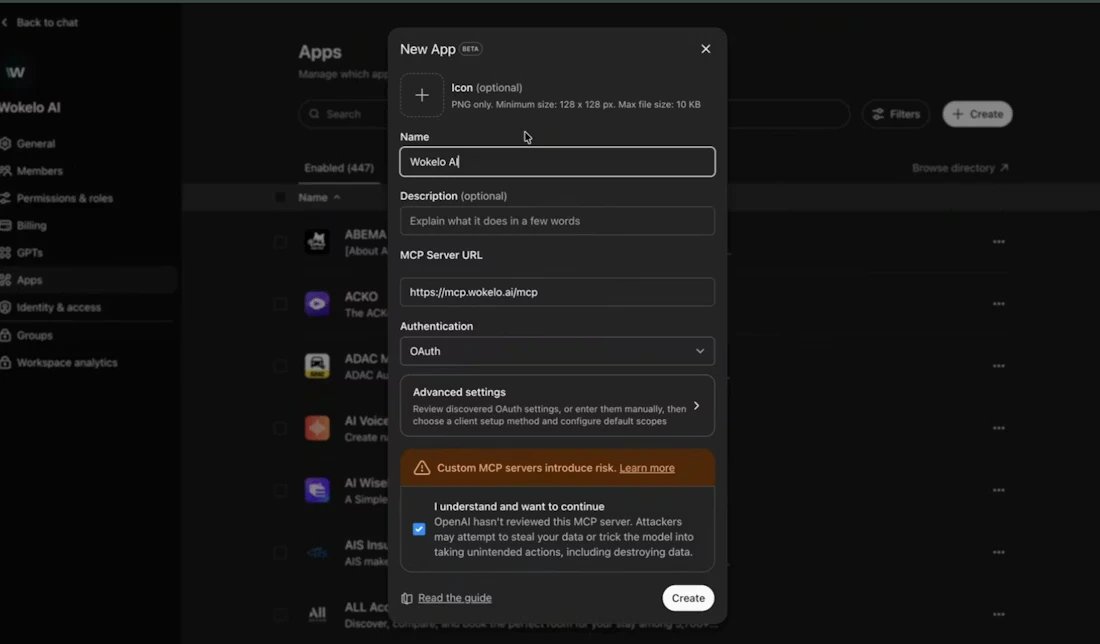
 * **Name:** `Wokelo`
* **MCP Server URL:** `https://mcp.wokelo.ai/mcp`
* **Authentication:** OAuth
Click **Create**.
* **Name:** `Wokelo`
* **MCP Server URL:** `https://mcp.wokelo.ai/mcp`
* **Authentication:** OAuth
Click **Create**.
 You'll be redirected to Wokelo to log in. Once authenticated, the Wokelo connector is live in your workspace.
### Upload the Skill File in ChatGPT
In the left navigation panel, click **Skills**.
You'll be redirected to Wokelo to log in. Once authenticated, the Wokelo connector is live in your workspace.
### Upload the Skill File in ChatGPT
In the left navigation panel, click **Skills**.
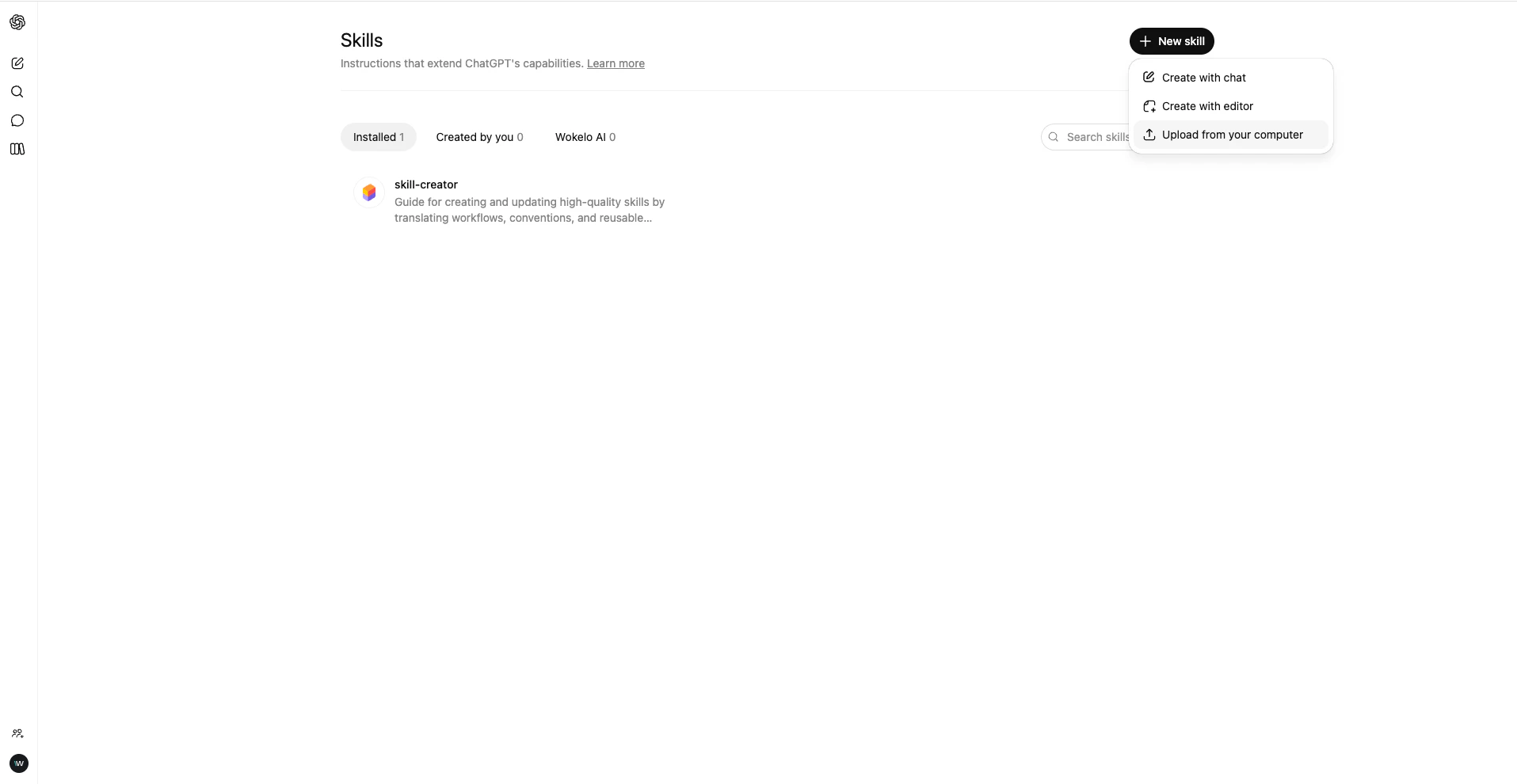
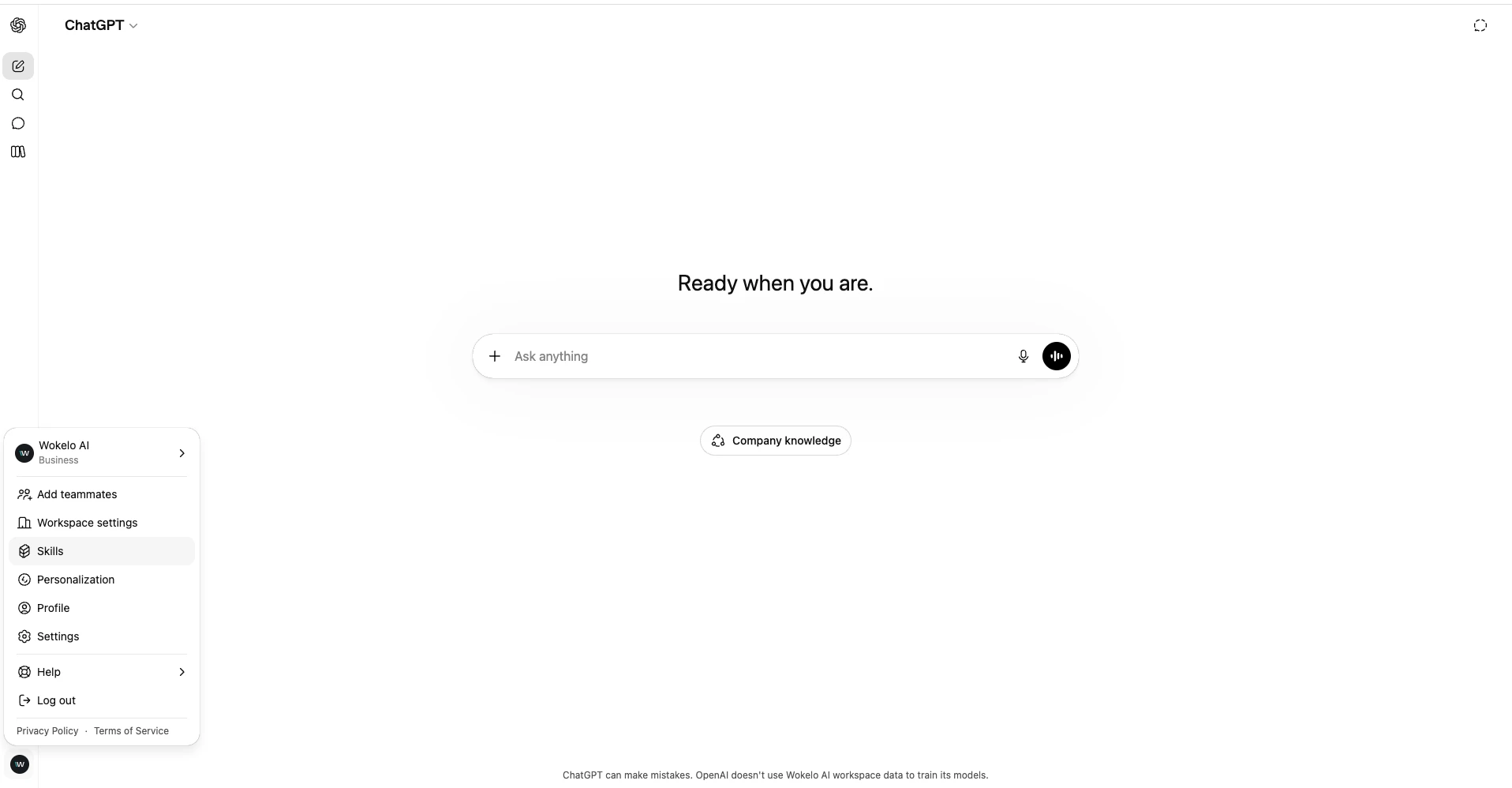 Click **New Skill** and upload the [Wokelo Skill File](https://wkemails.blob.core.windows.net/clients/%28%27fb10f00c-3eee-409a-a398-a4285d8ad7fa%27%2C%29/Skill%20%282%29.md).
 ***
## Your first query
Once connected, try one of these to confirm the integration works:
| Query | What it triggers |
| :-------------------------------------------------------------------------------- | :------------------------------------------------------------------ |
| *"Tell me about Stripe — recent news, funding, headcount, and key acquisitions."* | `search_company` → `get_company_news` → `submit_company_enrichment` |
| *"Who are the top 10 LLM observability startups, and what have they raised?"* | `submit_market_map` → `submit_company_enrichment` |
| *"Pull employee reviews for Notion and its three closest peers."* | `get_employee_reviews` across the peer set |
| *"Run a peer comparison on Stripe, Adyen, and Checkout.com."* | `list_workflows` → `start_workflow` (peer comparison) |
For a fuller catalog of scenarios with sample prompts and expected outputs, see [MCP use cases](/mcp-use-cases).
***
## Tool Reference
The Wokelo MCP exposes \~20 tools across four categories. Most casual questions are answered by **instant tools** in seconds. **Async tools** submit a job, return a `request_id`, and your assistant polls until the result is ready.
### Instant tools — return in seconds
| Tool | Purpose | Typical use |
| :--------------------- | :------------------------------------------------------------------ | :---------------------------------------- |
| `search_company` | Resolve a company name to a unique permalink | Always run first for any named company |
| `get_company_news` | Latest articles on a company, with summaries and publisher metadata | "Latest on \[company]" |
| `get_employee_reviews` | Glassdoor-style sentiment, culture scores, leadership ratings | "What's the culture like at \[company]?" |
| `get_product_reviews` | G2-style product reputation and customer feedback | "How is \[product] reviewed?" |
| `list_workflows` | Catalog of available workflows (including custom firm workflows) | Required before triggering any report |
| `list_notebooks` | Past reports generated for the user/firm | Find an existing report before re-running |
| `list_earnings_calls` | Available earnings transcripts for a company | Required before earnings analysis |
### Async tools — submit, poll, retrieve
| Tool | Purpose | Typical runtime |
| :--------------------------- | :----------------------------------------------------------------------------------------------------- | :----------------------------------------------- |
| `submit_company_enrichment` | Structured data on 1–200 companies (firmographics, funding, financials, headcount, acquisitions) | 1–5 min (fast sections) / \~15 min (AI sections) |
| `submit_industry_enrichment` | Sector intelligence — market size, trends, M\&A, regulations | 10–30 min |
| `submit_market_map` | Discover companies in a space; map the competitive landscape | 10–20 min |
| `submit_target_screening` | Find M\&A acquisition targets for an acquirer | 10–20 min |
| `submit_buyer_screening` | Find potential acquirers for a target | 10–20 min |
| `start_workflow` | Trigger a structured report or notebook (company research, IC memo, peer comparison, earnings, custom) | 20–60 min depending on workflow |
### Utility tools
| Tool | Purpose |
| :------------------- | :---------------------------------------------------------------------------------------------------------- |
| `get_request_status` | Poll the status of an async job |
| `get_request_result` | Retrieve results once status is `COMPLETED` |
| `wait_for_result` | Convenience wrapper for short jobs (enrichment only — not for market maps, screenings, or industry reports) |
| `download_notebook` | Download a finished report as PDF, DOCX, PPTX, or JSON |
| `cancel_request` | Abort a pending or in-progress job |
***
## Tool permissions
Open the **Connectors** page in Claude (Web or Desktop) and click **Configure** next to the Wokelo connector. You'll see every tool listed with three permission options:
* **Always allow** — runs without prompting
* **Needs approval** — asks before each call
* **Blocked** — disabled
***
## Your first query
Once connected, try one of these to confirm the integration works:
| Query | What it triggers |
| :-------------------------------------------------------------------------------- | :------------------------------------------------------------------ |
| *"Tell me about Stripe — recent news, funding, headcount, and key acquisitions."* | `search_company` → `get_company_news` → `submit_company_enrichment` |
| *"Who are the top 10 LLM observability startups, and what have they raised?"* | `submit_market_map` → `submit_company_enrichment` |
| *"Pull employee reviews for Notion and its three closest peers."* | `get_employee_reviews` across the peer set |
| *"Run a peer comparison on Stripe, Adyen, and Checkout.com."* | `list_workflows` → `start_workflow` (peer comparison) |
For a fuller catalog of scenarios with sample prompts and expected outputs, see [MCP use cases](/mcp-use-cases).
***
## Tool Reference
The Wokelo MCP exposes \~20 tools across four categories. Most casual questions are answered by **instant tools** in seconds. **Async tools** submit a job, return a `request_id`, and your assistant polls until the result is ready.
### Instant tools — return in seconds
| Tool | Purpose | Typical use |
| :--------------------- | :------------------------------------------------------------------ | :---------------------------------------- |
| `search_company` | Resolve a company name to a unique permalink | Always run first for any named company |
| `get_company_news` | Latest articles on a company, with summaries and publisher metadata | "Latest on \[company]" |
| `get_employee_reviews` | Glassdoor-style sentiment, culture scores, leadership ratings | "What's the culture like at \[company]?" |
| `get_product_reviews` | G2-style product reputation and customer feedback | "How is \[product] reviewed?" |
| `list_workflows` | Catalog of available workflows (including custom firm workflows) | Required before triggering any report |
| `list_notebooks` | Past reports generated for the user/firm | Find an existing report before re-running |
| `list_earnings_calls` | Available earnings transcripts for a company | Required before earnings analysis |
### Async tools — submit, poll, retrieve
| Tool | Purpose | Typical runtime |
| :--------------------------- | :----------------------------------------------------------------------------------------------------- | :----------------------------------------------- |
| `submit_company_enrichment` | Structured data on 1–200 companies (firmographics, funding, financials, headcount, acquisitions) | 1–5 min (fast sections) / \~15 min (AI sections) |
| `submit_industry_enrichment` | Sector intelligence — market size, trends, M\&A, regulations | 10–30 min |
| `submit_market_map` | Discover companies in a space; map the competitive landscape | 10–20 min |
| `submit_target_screening` | Find M\&A acquisition targets for an acquirer | 10–20 min |
| `submit_buyer_screening` | Find potential acquirers for a target | 10–20 min |
| `start_workflow` | Trigger a structured report or notebook (company research, IC memo, peer comparison, earnings, custom) | 20–60 min depending on workflow |
### Utility tools
| Tool | Purpose |
| :------------------- | :---------------------------------------------------------------------------------------------------------- |
| `get_request_status` | Poll the status of an async job |
| `get_request_result` | Retrieve results once status is `COMPLETED` |
| `wait_for_result` | Convenience wrapper for short jobs (enrichment only — not for market maps, screenings, or industry reports) |
| `download_notebook` | Download a finished report as PDF, DOCX, PPTX, or JSON |
| `cancel_request` | Abort a pending or in-progress job |
***
## Tool permissions
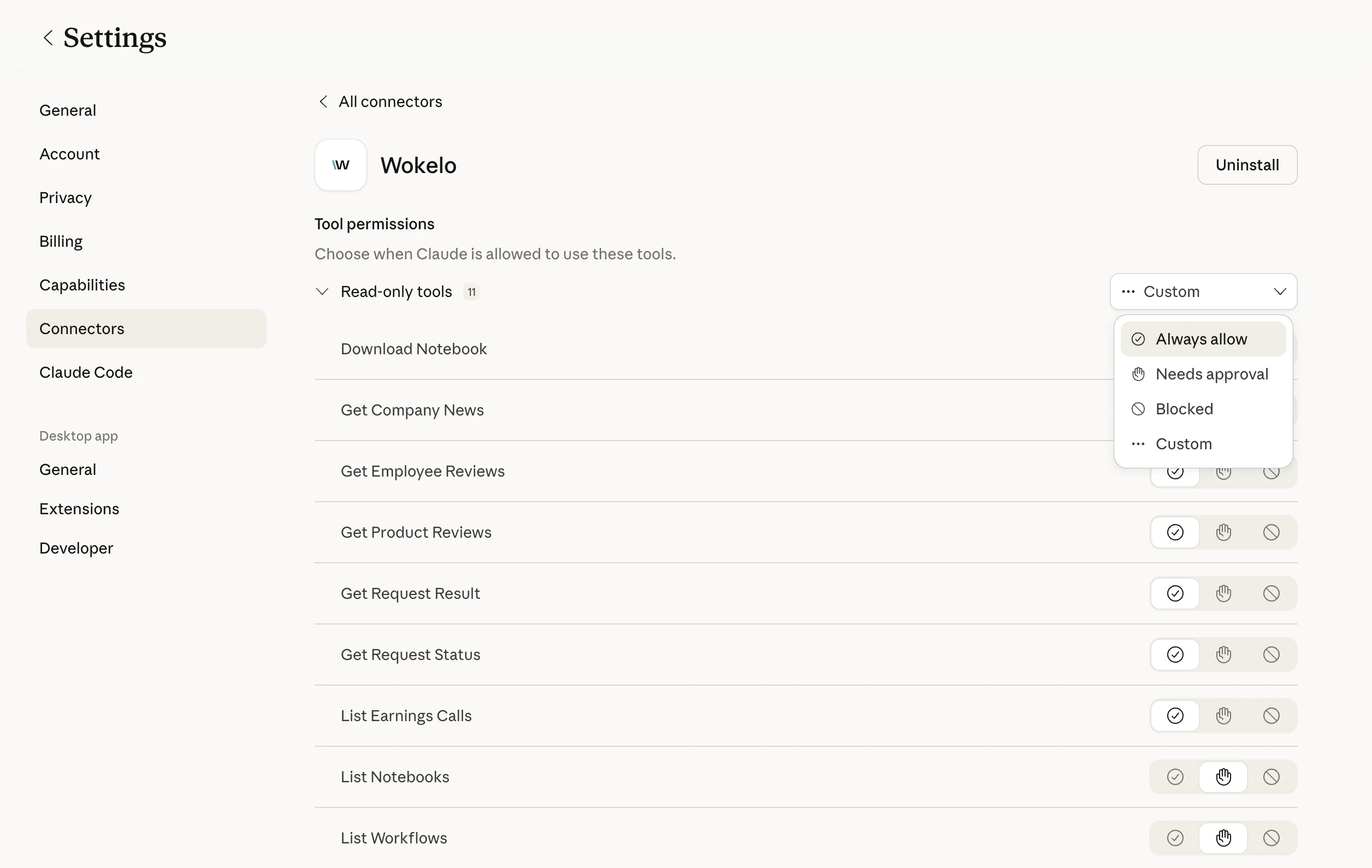
Open the **Connectors** page in Claude (Web or Desktop) and click **Configure** next to the Wokelo connector. You'll see every tool listed with three permission options:
* **Always allow** — runs without prompting
* **Needs approval** — asks before each call
* **Blocked** — disabled
 ### Recommended defaults
| Permission | Tools | Why |
| :----------------- | :----------------------------------------------------------------------------------------------------------------------------------------------------------------------------------------- | :--------------------------------------------------------------------------- |
| **Always allow** | `search_company`, `get_company_news`, `get_employee_reviews`, `get_product_reviews`, `list_workflows`, `list_notebooks`, `list_earnings_calls`, `get_request_status`, `get_request_result` | Fast, read-only, low-credit cost |
| **Needs approval** | `submit_company_enrichment`, `submit_industry_enrichment`, `submit_market_map`, `submit_target_screening`, `submit_buyer_screening`, `start_workflow`, `download_notebook` | Long-running and consume more credits |
| **Blocked** | `cancel_request` (optional) | Block only if you want to prevent accidental cancellation of teammates' jobs |
***
## Limits and quotas
| Limit | Value | Notes |
| :------------------------------------------------- | :------------- | :-------------------------------------------------- |
| Companies per enrichment call (fast sections only) | 200 | Firmographics, funding, headcount, financials, etc. |
| Companies per enrichment call (with AI sections) | 20 | Drops sharply when slow AI sections are included |
| Companies per peer comparison workflow | 5 | Hard cap on the `websites` parameter |
| Concurrent async jobs | Plan-dependent | Contact your account manager for limits |
| Credit consumption | Varies by tool | Async report workflows consume the most |
If you hit a limit, your assistant will return an error from Wokelo. Re-prompt with a smaller batch or contact your account manager to raise quotas.
***
## Troubleshooting
Check that you completed OAuth — if the auth window closed early, the connector won't register. Remove and re-add it, then watch for the redirect to Wokelo's login page. If you're on ChatGPT, also confirm Developer Mode is enabled at the workspace level.
The skill file is almost certainly missing or out of date. Re-upload the latest [Skill File](https://wkemails.blob.core.windows.net/clients/%28%279a7adb3f-b1d2-4fe0-9062-3aea68bae540%27%2C%29/SKILL.md). The skill tells the assistant to prefer Wokelo over web search for company queries.
Your OAuth session has expired. Open **Connectors → Configure → Wokelo** and re-authenticate. No data is lost.
Industry research and full company reports can legitimately take 30–60 minutes. If a job exceeds 90 minutes with no result, ask your assistant to call `cancel_request` and resubmit, or contact support with the `request_id`.
You're including a slow AI section (e.g. `business_model`, `management_profiles`). Either drop the AI section, or split into batches of 20.
Ask your assistant: *"List my available Wokelo workflows."* It will call `list_workflows` and surface your firm's custom workflow codes. Then ask it to run the one you want.
***
## FAQ
The MCP server is a wrapper that exposes Wokelo's research capabilities to AI assistants in a chat-native way. The [REST API](/overview) is for direct integration into your own applications. Most MCP tools map 1:1 to API endpoints, but the MCP layer adds orchestration — chaining tools, handling polling, and formatting outputs for chat.
Officially supported: **Claude Web**, **Claude Desktop**, **ChatGPT Business**, and **ChatGPT Enterprise**. Any MCP-compliant client (Cursor, Cline, custom agents) should also work, but isn't officially tested.
Yes — MCP access requires an active Wokelo account with MCP enabled. Contact your account manager if you're unsure of your plan.
All MCP traffic is authenticated via OAuth and uses HTTPS. Wokelo doesn't train on your queries or share them with third parties. See your customer agreement for full data handling terms.
Yes. Async tools return a `request_id` that can be polled by an agent or scheduled job — including via [Cowork](https://www.anthropic.com/) or similar orchestration layers — for unattended deliverables like Monday-morning portfolio digests.
The relevant tool returns an empty or partial result. Your assistant should fall back to web search for that specific request — the skill file enforces this behavior.
Ask: *"Show me my recent Wokelo notebooks"* — the assistant calls `list_notebooks`, finds the report, and can download it as PDF, DOCX, or PPTX via `download_notebook`.
***
## Next steps
Sample queries and dealmaking workflows you can run today.
Direct REST API access for custom integrations.
Connect Wokelo with Affinity, Salesforce, DealCloud, and more.
Questions about plans, limits, or onboarding.
### Recommended defaults
| Permission | Tools | Why |
| :----------------- | :----------------------------------------------------------------------------------------------------------------------------------------------------------------------------------------- | :--------------------------------------------------------------------------- |
| **Always allow** | `search_company`, `get_company_news`, `get_employee_reviews`, `get_product_reviews`, `list_workflows`, `list_notebooks`, `list_earnings_calls`, `get_request_status`, `get_request_result` | Fast, read-only, low-credit cost |
| **Needs approval** | `submit_company_enrichment`, `submit_industry_enrichment`, `submit_market_map`, `submit_target_screening`, `submit_buyer_screening`, `start_workflow`, `download_notebook` | Long-running and consume more credits |
| **Blocked** | `cancel_request` (optional) | Block only if you want to prevent accidental cancellation of teammates' jobs |
***
## Limits and quotas
| Limit | Value | Notes |
| :------------------------------------------------- | :------------- | :-------------------------------------------------- |
| Companies per enrichment call (fast sections only) | 200 | Firmographics, funding, headcount, financials, etc. |
| Companies per enrichment call (with AI sections) | 20 | Drops sharply when slow AI sections are included |
| Companies per peer comparison workflow | 5 | Hard cap on the `websites` parameter |
| Concurrent async jobs | Plan-dependent | Contact your account manager for limits |
| Credit consumption | Varies by tool | Async report workflows consume the most |
If you hit a limit, your assistant will return an error from Wokelo. Re-prompt with a smaller batch or contact your account manager to raise quotas.
***
## Troubleshooting
Check that you completed OAuth — if the auth window closed early, the connector won't register. Remove and re-add it, then watch for the redirect to Wokelo's login page. If you're on ChatGPT, also confirm Developer Mode is enabled at the workspace level.
The skill file is almost certainly missing or out of date. Re-upload the latest [Skill File](https://wkemails.blob.core.windows.net/clients/%28%279a7adb3f-b1d2-4fe0-9062-3aea68bae540%27%2C%29/SKILL.md). The skill tells the assistant to prefer Wokelo over web search for company queries.
Your OAuth session has expired. Open **Connectors → Configure → Wokelo** and re-authenticate. No data is lost.
Industry research and full company reports can legitimately take 30–60 minutes. If a job exceeds 90 minutes with no result, ask your assistant to call `cancel_request` and resubmit, or contact support with the `request_id`.
You're including a slow AI section (e.g. `business_model`, `management_profiles`). Either drop the AI section, or split into batches of 20.
Ask your assistant: *"List my available Wokelo workflows."* It will call `list_workflows` and surface your firm's custom workflow codes. Then ask it to run the one you want.
***
## FAQ
The MCP server is a wrapper that exposes Wokelo's research capabilities to AI assistants in a chat-native way. The [REST API](/overview) is for direct integration into your own applications. Most MCP tools map 1:1 to API endpoints, but the MCP layer adds orchestration — chaining tools, handling polling, and formatting outputs for chat.
Officially supported: **Claude Web**, **Claude Desktop**, **ChatGPT Business**, and **ChatGPT Enterprise**. Any MCP-compliant client (Cursor, Cline, custom agents) should also work, but isn't officially tested.
Yes — MCP access requires an active Wokelo account with MCP enabled. Contact your account manager if you're unsure of your plan.
All MCP traffic is authenticated via OAuth and uses HTTPS. Wokelo doesn't train on your queries or share them with third parties. See your customer agreement for full data handling terms.
Yes. Async tools return a `request_id` that can be polled by an agent or scheduled job — including via [Cowork](https://www.anthropic.com/) or similar orchestration layers — for unattended deliverables like Monday-morning portfolio digests.
The relevant tool returns an empty or partial result. Your assistant should fall back to web search for that specific request — the skill file enforces this behavior.
Ask: *"Show me my recent Wokelo notebooks"* — the assistant calls `list_notebooks`, finds the report, and can download it as PDF, DOCX, or PPTX via `download_notebook`.
***
## Next steps
Sample queries and dealmaking workflows you can run today.
Direct REST API access for custom integrations.
Connect Wokelo with Affinity, Salesforce, DealCloud, and more.
Questions about plans, limits, or onboarding.