> ## Documentation Index
> Fetch the complete documentation index at: https://docs.wokelo.ai/llms.txt
> Use this file to discover all available pages before exploring further.
# Getting started
## Wokelo MCP server
The Wokelo MCP Server provides access to Wokelo’s agentic research capabilities, including:
* Enrichment APIs
* Company Discovery APIs
* News Discovery APIs
* Wokelo Workflow APIs
These capabilities are powered by domain-tuned LLMs and a proprietary database of 20M+ companies enriched with 30+ premium data sources.
Users can run research workflows, generate reports, and query structured intelligence directly within Claude—without switching platforms.
## Using Wokelo’s MCP Server
Wokelo’s MCP Server integrates with Claude/ chatGPT using OAuth-based authentication.
## Prerequisites
* A Wokelo account with MCP access enabled
* Access to Claude Web/ Claude Desktop/ ChatGPT web
* Download [Skill File](https://wkemails.blob.core.windows.net/clients/%28%2757f852d3-2e7c-41ee-83b4-44210e169928%27%2C%29/Skill%20%281%29.md)
## Connecting via Claude Web
1. Open Claude and go to Settings
2. Navigate to Connectors —> Add Connectors
3. Add Connector Name as “Wokelo” and Remote MCP server URL as [https://mcp.wokelo.ai/mcp](https://mcp.wokelo.ai/mcp) and then click Add
4. You will be directed to Wokelo’s app for login. Complete authentication and then you should see the Wokelo connector added on Claude.
## Connecting via Claude Desktop
1. Open Claude Desktop and go to Settings
2. Navigate to Connectors —> Add Connectors
3. Add Connector Name as “Wokelo” and Remote MCP server URL as [https://mcp.wokelo.ai/mcp](https://mcp.wokelo.ai/mcp) and then click Add
4. You will be directed to Wokelo’s app for login. Complete authentication and then you should see the Wokelo connector added on Claude.
## Connecting via ChatGPT Web
Note: Available on Business (Team) and Enterprise Plan of chatGPT. ONLY admins can setup the custom apps.
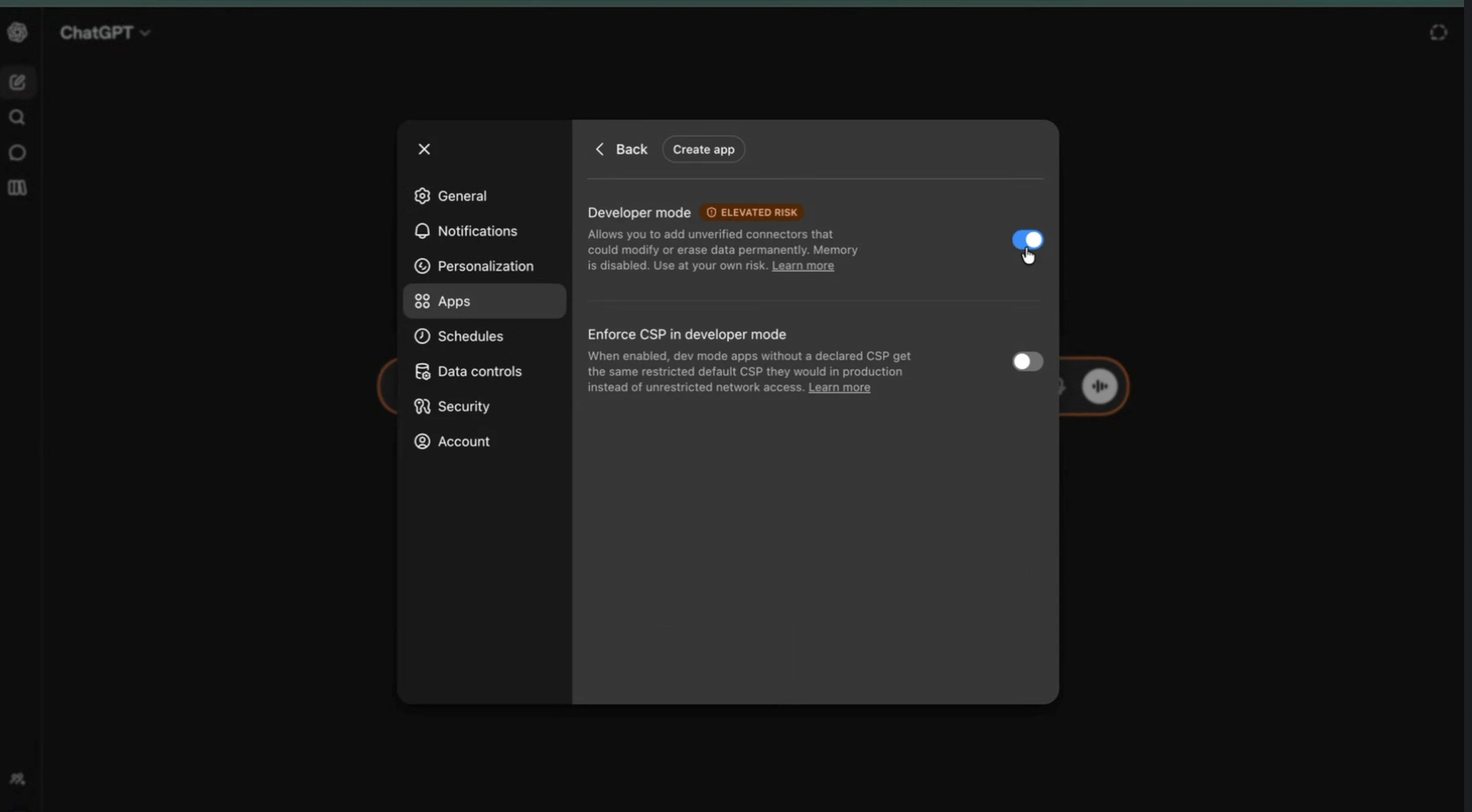
1. Navigate to settings → Apps → Advanced Settings and then Enable developer mode.\\
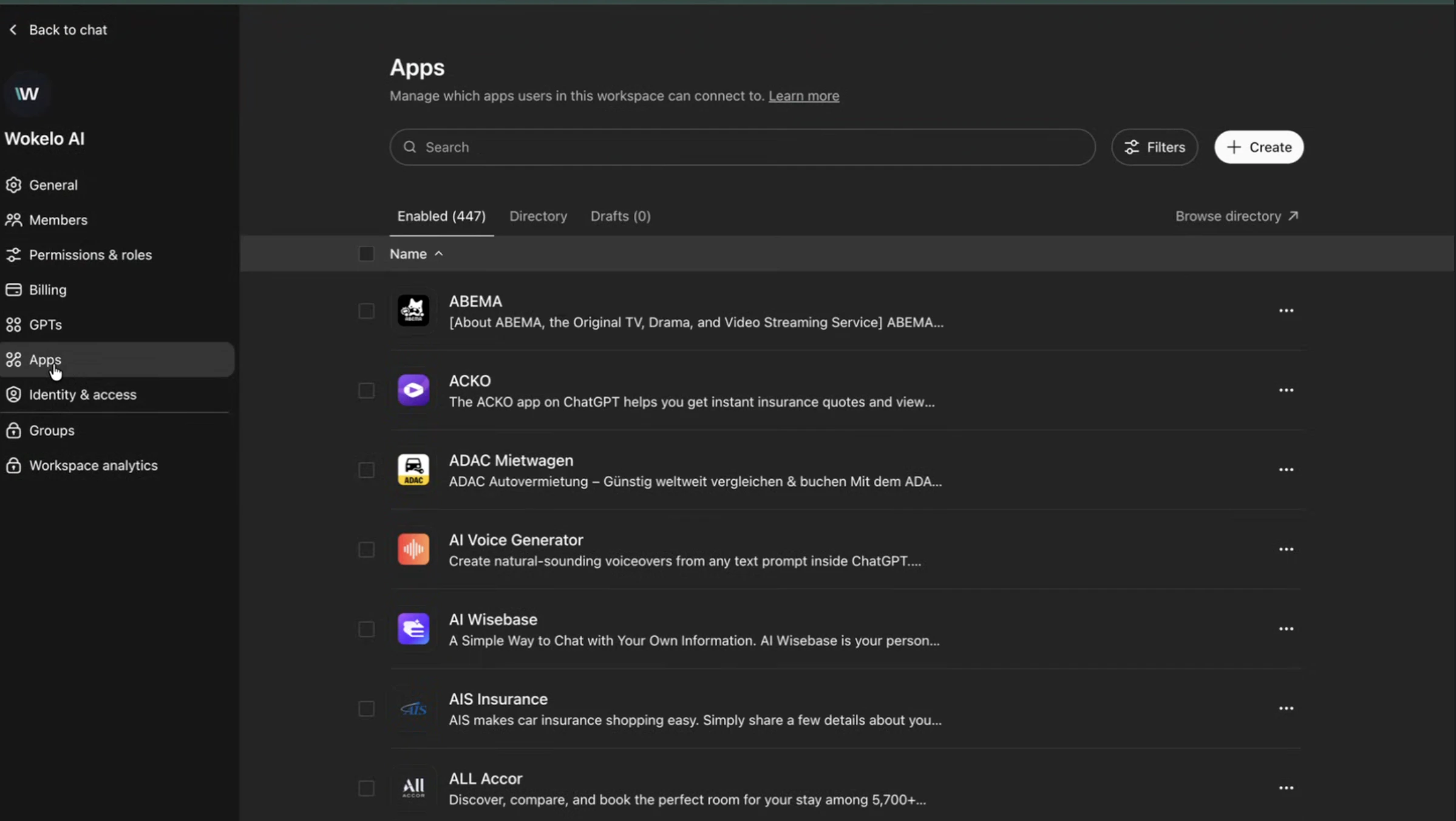
 2. From the worksapce settings, go to Apps. and click on create\\
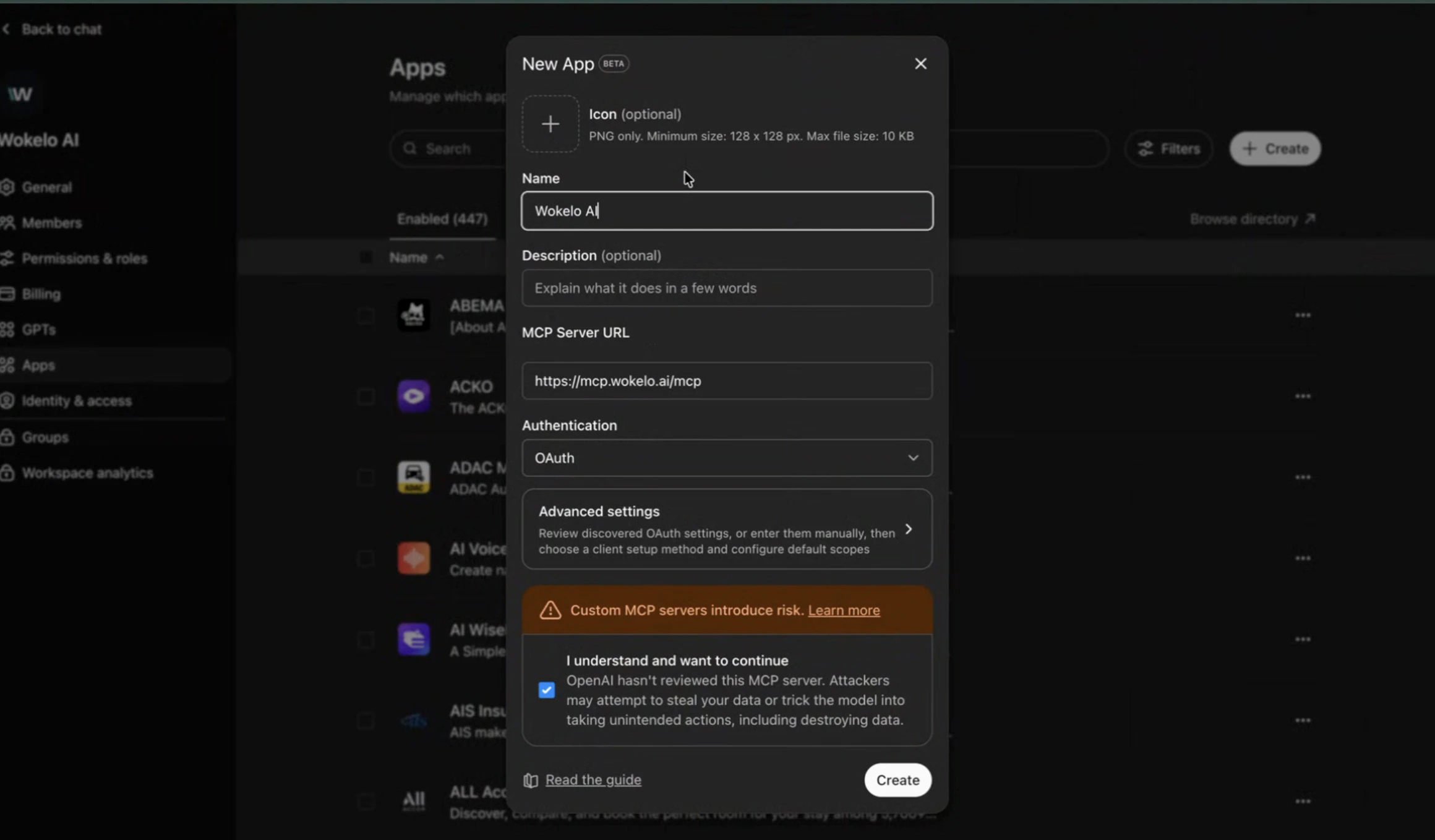
 3. Add Name, MCP Server URL as [https://mcp.wokelo.ai/mcp](https://mcp.wokelo.ai/mcp) , authentication as OAuth and click on Create\\
 4. You will be directed to Wokelo’s app for login. Complete authentication and then you should see the Wokelo connector added on chatGPT.
## **Tool Permissions**
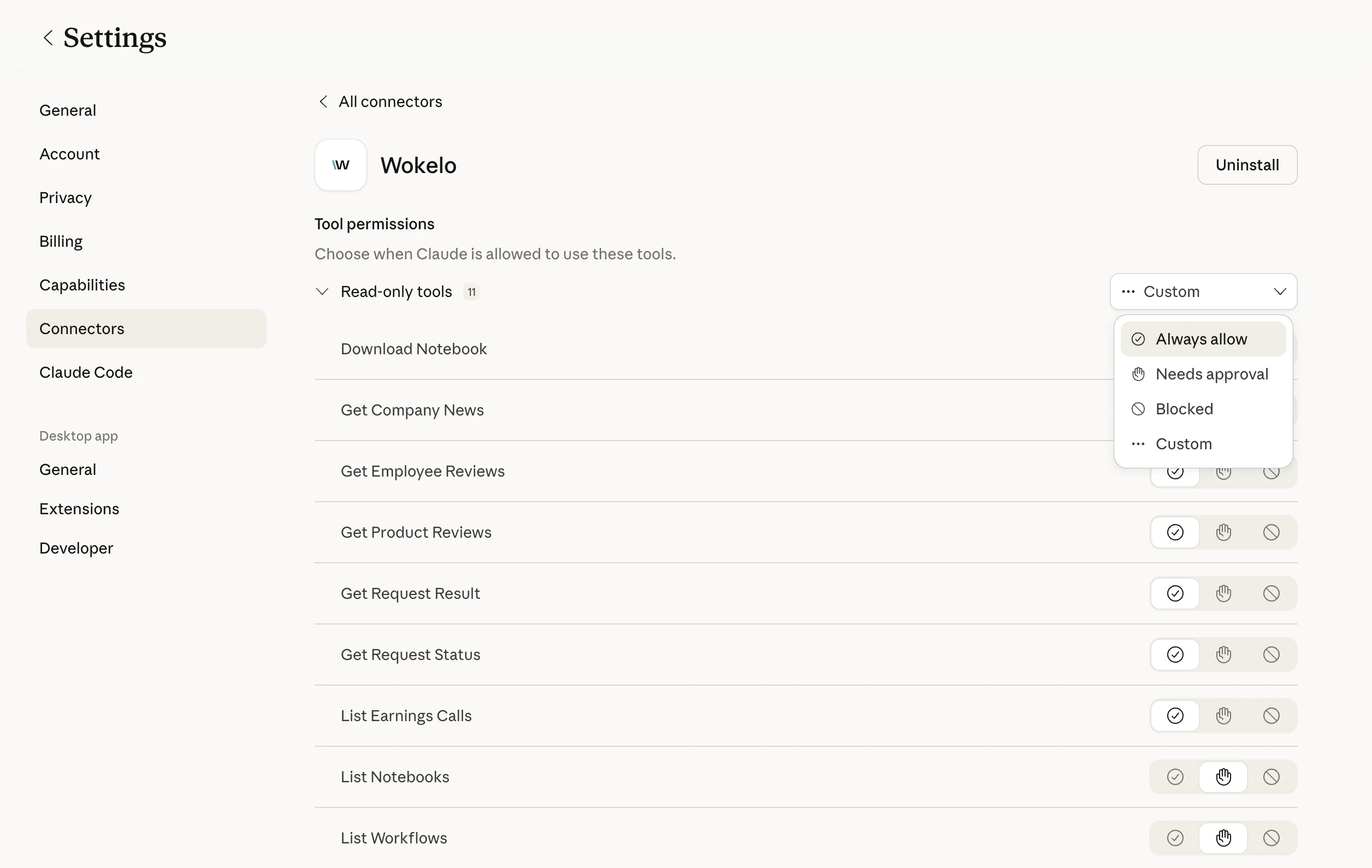
Navigate to Connectors page on claude web/ Desktop and Select “Configure” option against the Wokelo connector. You will be able to see a list of tools available under the Wokelo MCP. You can customise the permission for each tool by selecting among “Always allow”, “Needs approval” or “Blocked”.
4. You will be directed to Wokelo’s app for login. Complete authentication and then you should see the Wokelo connector added on chatGPT.
## **Tool Permissions**
Navigate to Connectors page on claude web/ Desktop and Select “Configure” option against the Wokelo connector. You will be able to see a list of tools available under the Wokelo MCP. You can customise the permission for each tool by selecting among “Always allow”, “Needs approval” or “Blocked”.